Email Marketing for Australian Shopify Brands: The Complete Setup Checklist
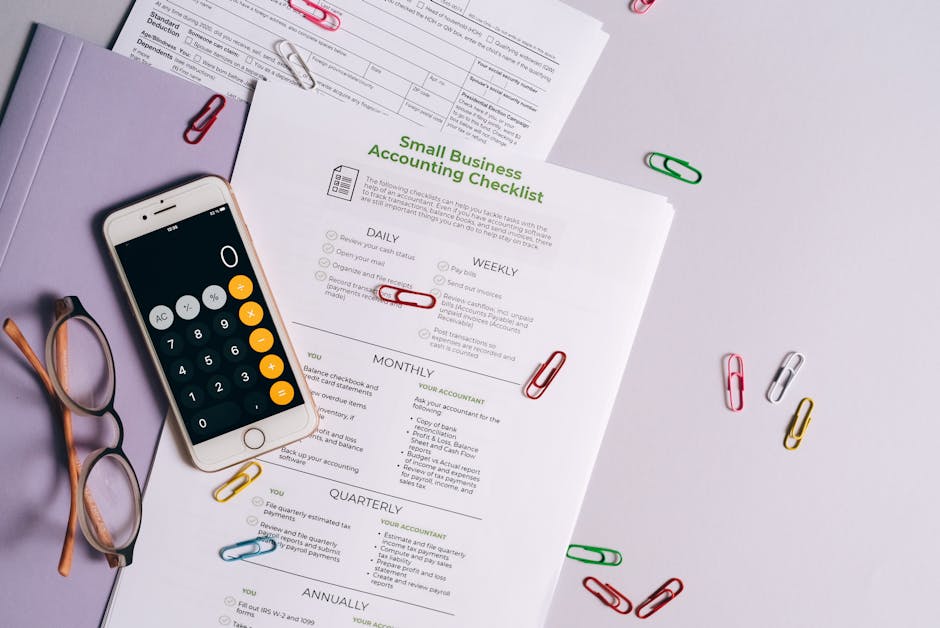
Setting up email marketing for an Australian Shopify brand is not as simple as connecting an ESP and hitting send. Done properly, it requires a sequence of setup tasks that span technical configuration, legal compliance, automation builds, and strategic planning — all adapted for the Australian market.
This checklist covers every setup task an Australian Shopify brand needs to complete to run a compliant, high-performing email programme. It’s structured in the order tasks should be completed, with notes on Australian-specific requirements throughout.
Use this as a reference when setting up a new programme, auditing an existing one, or onboarding a new ESP.
Phase 1: ESP Selection and Account Setup
1.1 Choose Your ESP
Select the platform that best fits your current stage and requirements. For Australian Shopify brands, the primary options are:
- Klaviyo: Best-in-class for e-commerce. Native Shopify integration, advanced segmentation, predictive analytics. Recommended for brands generating AU$500K+ in online revenue or with 5,000+ subscribers. Pricing in USD (note this when budgeting in AUD).
- Omnisend: Strong for brands wanting combined email and SMS. Good Shopify integration. More affordable than Klaviyo at entry level.
- ActiveCampaign: Best for brands with complex CRM needs or mixed B2C/B2B channels. Invoicing often in USD — check current pricing.
- Campaign Monitor: Australian-founded platform (now US-owned). Familiar to many Australian agencies. Reliable for mid-market brands.
- Mailchimp: Accessible for early-stage brands. Migrate to a more capable platform when list exceeds 5,000 contacts or email revenue focus intensifies.
- HubSpot: Suitable for brands with significant CRM and sales pipeline alongside e-commerce.
1.2 Create Your Account
- Set up your account under your business entity name (not a personal name)
- Set your primary business timezone to AEST (UTC+10) as the base — note that AEDT applies in NSW, VIC, ACT, SA, TAS from October to April
- Set your physical address in account settings — this is required for Spam Act compliance (sender identification)
- Set your currency to AUD for reporting where the platform supports it (Klaviyo supports AUD in their revenue reporting)
1.3 Domain Authentication
Domain authentication is critical for inbox placement. Without it, your emails are more likely to land in spam or the promotions tab.
Set up the following DNS records:
- SPF record: Authorises your ESP to send email from your domain
- DKIM record: Cryptographic signature that verifies your sending domain
- DMARC record: Policy that instructs receiving servers how to handle failed SPF or DKIM checks
All major ESPs provide the specific DNS values you need to add to your domain registrar. This is typically done through your hosting provider’s DNS settings (Cloudflare, GoDaddy, Namecheap, etc.).
After adding DNS records, verify them within your ESP. Klaviyo, Omnisend, and ActiveCampaign all have built-in domain verification tools.
Do not skip this step. Unauthenticated sending significantly increases spam classification risk and is a leading cause of deliverability problems for new-to-email brands.
Phase 2: Shopify Integration
2.1 Connect Shopify to Your ESP
- Install the Shopify integration for your chosen ESP
- Klaviyo: Install the Klaviyo Shopify app from the Shopify App Store
- Omnisend: Install the Omnisend app
- ActiveCampaign: Use the ActiveCampaign Shopify integration
- Mailchimp: Connect via the Mailchimp Shopify app
After connecting, verify that:
- Historical customer and subscriber data is importing correctly
- Real-time purchase events are flowing (test with a small test order)
- Product catalogue data is syncing (used for product recommendation emails)
- Cart abandonment events are firing (test by creating and abandoning a test cart)
2.2 Configure Shopify Checkout Email Consent
In Shopify admin, navigate to Settings > Checkout > Email Marketing:
- Set the marketing opt-in checkbox to not preselected (unchecked by default)
- Ensure the checkbox label reads clearly: “Email me with news and offers” or customise to “[Brand Name] marketing emails”
- Under the “Abandoned checkout” settings, configure whether to send abandoned cart emails through Shopify (we recommend disabling these if you’re building abandoned cart flows in your ESP to avoid duplicate emails)
2.3 Sync Historical Data
Import your existing customer data:
- Customer purchase history
- Previously subscribed contacts
- Previously unsubscribed contacts (critical — import suppressions BEFORE importing subscribers to avoid accidentally emailing people who have unsubscribed)
- Existing email campaign data (if migrating from another platform)
Suppression list import is mandatory. If you have a history of unsubscribe requests on a previous platform, these must be imported as suppressions before any campaigns are sent. Emailing someone who has previously unsubscribed is a potential Spam Act breach.
Phase 3: Spam Act Compliance Configuration
3.1 Audit Your Existing List
Before sending any emails, audit your existing subscriber list:
- Document the consent basis for each subscriber segment (express consent via sign-up form, checkout opt-in, inferred consent from purchase history)
- Identify subscribers with unclear or potentially invalid consent — e.g., contacts imported from event sign-up sheets without explicit email marketing opt-in
- Identify subscribers who haven’t engaged in 12+ months — assess whether inferred consent may have expired
- Ensure all known unsubscribers are suppressed
3.2 Configure Email Footers
Every email template must include, in the footer:
- Your business or trading name
- A physical or postal address (PO Box is acceptable)
- A functional unsubscribe link
In Klaviyo, this is configured in the Email Templates section — the default footer includes an unsubscribe link but may need the physical address added. Add your business address as a reusable template element.
In ActiveCampaign, Campaign Monitor, Mailchimp, and Omnisend, footer configuration is similar — find your account footer settings and add your business address.
3.3 Test the Unsubscribe Process
Test your unsubscribe mechanism before sending any live campaigns:
- Add a test email address to your subscriber list
- Send a test campaign to that address
- Click the unsubscribe link
- Verify that the test email is immediately added to your suppression list
- Attempt to send another email to the test address — verify it is suppressed
This test should be performed on every ESP you use. The Spam Act requires unsubscribes to be honoured within five business days. Modern ESPs process them in real time — but you need to confirm this is working for your specific account.
3.4 Review Sign-Up Form Language
Audit every sign-up form and pop-up on your Shopify store:
- Does the form clearly state that subscribers will receive marketing emails from your brand?
- Is the consent checkbox unticked by default (if used)?
- Is the brand name clearly identified in the sign-up form?
Update any vague language (“stay connected,” “join the community”) to explicitly communicate the email marketing purpose.
Phase 4: Sign-Up Form and List Growth Setup
4.1 Website Pop-Up
Build a compliant, conversion-optimised pop-up:
- Headline: Clear value exchange — “Get 15% off your first order”
- Body copy: Brief description of what subscribers will receive
- Consent language: Clear statement that they’re subscribing to marketing emails
- CTA button: “Subscribe” or “Get my discount” — not “Submit”
- Trigger: Exit-intent or 30-second time delay
- Targeting: Suppress for existing subscribers and recent purchasers
4.2 Footer Sign-Up Form
Add a persistent sign-up form to your website footer for visitors who scroll without triggering the pop-up.
4.3 Checkout Opt-In (Shopify)
Configure Shopify checkout opt-in as described in Phase 2.2.
4.4 Post-Purchase Sign-Up (for purchasers who didn’t opt in at checkout)
Build a simple flow in your ESP that identifies purchasers who are not email subscribers and sends them a single invitation to join your list.
Phase 5: Automated Flows — Priority Build Order
Build these flows in order of revenue impact:
5.1 Welcome Series (Build First)
Build a 4–5 email welcome series:
- Email 1 (immediate): Welcome offer delivery, brand introduction
- Email 2 (Day 2): Brand story and values
- Email 3 (Day 4): Social proof and reviews
- Email 4 (Day 7): Product education
- Email 5 (Day 9–10): Welcome offer urgency close (conditional: send only to non-purchasers)
5.2 Abandoned Cart (Build Second)
Build a 3-email abandoned cart sequence:
- Email 1 (1 hour): Cart reminder, no incentive
- Email 2 (24 hours): Objection handling — returns policy, reviews, delivery info
- Email 3 (72 hours): Incentive offer (conditional: send only to non-purchasers after Email 1)
5.3 Browse Abandonment (Build Third)
Build a 2-email browse abandonment sequence:
- Email 1 (4–6 hours): Product reminder
- Email 2 (24 hours): Alternatives or bestsellers
5.4 Post-Purchase Series (Build Fourth)
Build a 4–5 email post-purchase sequence:
- Email 1 (Day 1): Brand-voice order acknowledgement
- Email 2 (After delivery): Delivery check-in
- Email 3 (Day 7–14): Review request
- Email 4 (Day 21): Cross-sell recommendation
- Email 5 (Day 45): Re-engagement
5.5 Replenishment Flow (Build Fifth, if applicable)
For consumable products, build a replenishment sequence triggered by time-since-purchase.
5.6 Win-Back Flow (Build Sixth)
Build a 5-email win-back sequence as described in the win-back guide.
5.7 Sunset Flow (Build Seventh)
Build a 2-email sunset flow for subscribers inactive for 180+ days.
Phase 6: Campaign Calendar Setup
6.1 Build Your 12-Month Australian Retail Calendar
Map the major Australian retail events to a 12-month campaign calendar:
- January: Post-Christmas/Boxing Week closeout, Australia Day (26 Jan)
- February: Valentine’s Day
- March: Autumn launch (fashion/apparel)
- April: Easter (Good Friday through Easter Monday)
- May: Mother’s Day (second Sunday in May)
- June: EOFY (1–30 June) — your biggest campaign period of H1
- July: Mid-year sale, new season preview
- August: Father’s Day preparation, winter clearance
- September: Father’s Day (first Sunday), spring launch
- October: Melbourne Cup preparation (first Tuesday in November)
- November: Click Frenzy, BFCM (Black Friday / Cyber Monday)
- December: Christmas campaigns, Boxing Day preparation
6.2 Configure Send-Time Defaults
Set your default campaign send times in AEST/AEDT. Confirm that your ESP account timezone is correctly configured and that campaigns scheduled at, say, “9:00am” mean 9:00am AEST — not 9:00am US Eastern or UTC.
For national campaigns, account for:
- AWST (Perth): 2–3 hours behind eastern capitals (depending on DST)
- ACST/ACDT (Adelaide): 30 minutes behind eastern capitals
Phase 7: Reporting and Benchmarking
7.1 Configure Revenue Tracking
In Klaviyo: Enable Shopify revenue attribution. Set attribution windows (5-day click, 1-day open is our recommended default for Australian e-commerce).
In ActiveCampaign, Omnisend, or Campaign Monitor: Configure revenue tracking integration with Shopify.
7.2 Set AUD as Reporting Currency
Where your ESP supports it, configure revenue reporting in AUD. In Klaviyo, this requires setting your Shopify store currency to AUD and confirming the revenue metric displays in AUD in your dashboard.
7.3 Set Baseline Benchmarks
Record your current metrics at programme launch so you have a baseline:
- Active subscriber count
- Average open rate (active segment)
- Average click rate
- Email revenue share (last 30 days)
- Flow revenue by flow type (once flows are live)
Compare monthly against the Australian e-commerce benchmarks from our benchmarks guide.
Let Excelohunt Complete This Checklist for You
This checklist represents 20–40 hours of setup work for a new programme or a thorough audit for an existing one. For Australian Shopify brands that want a fully configured, compliant, and performing email programme without doing it themselves, Excelohunt handles the entire setup.
We work across Klaviyo, ActiveCampaign, Campaign Monitor, HubSpot, Mailchimp, and Omnisend. We invoice in AUD, operate on AEST business hours, and build every programme to Australian Spam Act compliance standards from day one.
Get your free email audit and setup assessment →
We’ll tell you exactly where your current programme stands against this checklist and what needs to be done.
More in E-Commerce
- Email Marketing for UK Subscription Box Brands: Reducing Churn and Growing LTV
- Email Marketing for UK Supplements & Nutrition Brands
- How Australian E-Commerce Brands Can Win Back Lapsed Customers With Email
- Email Marketing for Canadian Supplements & Nutrition Brands
- Email Marketing for UK Beauty & Skincare Brands: The Complete Playbook
Want Us to Implement This for Your Brand?
Get a free email audit and see exactly where you're losing revenue.
Get Your Free Audit