AWeber List Building and Segmentation: Growing a List That Converts
A large email list is not the goal. A growing list of people who are genuinely interested in what you offer — and who you can communicate with relevantly — is the goal. That distinction sounds small but it shapes every decision in your AWeber list building and segmentation strategy.
This guide covers the practical mechanics of growing your list with AWeber’s native tools, how to use tags and segments to organise contacts meaningfully, and how to build a segmentation structure that remains manageable even as your list scales.
AWeber’s List Building Tools
AWeber gives you several tools for capturing new subscribers without needing external software. Each has its place depending on where and how you are attracting new contacts.
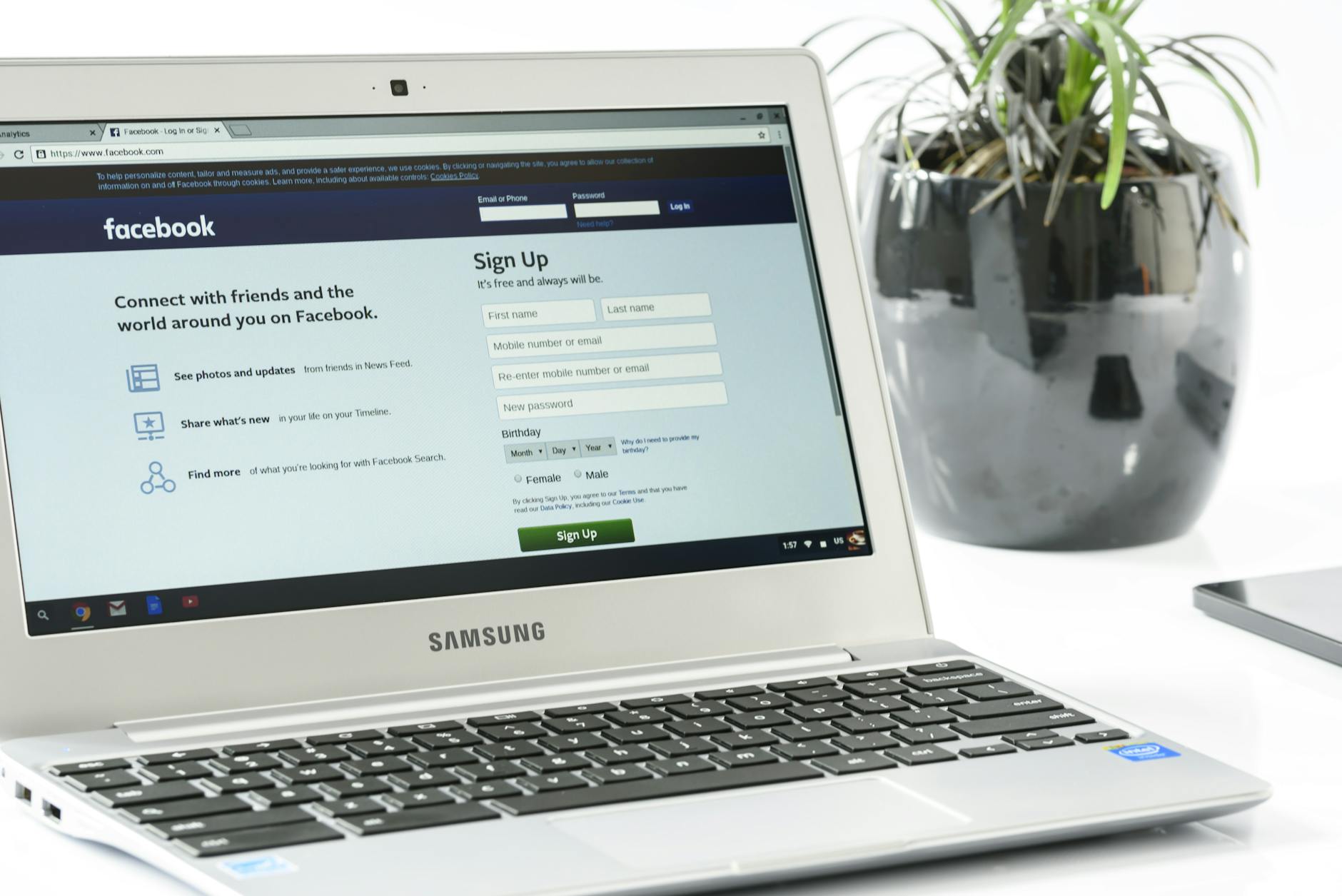
Sign Up Forms
AWeber’s sign up forms are the primary list-building tool. They can be embedded on your website, used as standalone hosted forms, or integrated into third-party platforms.
To create a form, go to Sign Up Forms in your AWeber dashboard and click Create a Sign Up Form. The form builder lets you customise the fields (name, email, phone, custom fields), the visual design, and the confirmation settings.
Keep your sign up forms as short as possible. Every additional field reduces conversion rates. For most purposes, first name and email address is enough. Add a phone field or additional custom fields only if that data is immediately useful for personalisation or segmentation — not speculatively.
For embedded forms on your website, AWeber provides a JavaScript snippet that you paste into your site’s HTML. Most website platforms (WordPress, Squarespace, Wix) also have AWeber plugins or integrations that make embedding easier without touching code.
Hosted Sign Up Pages
If you do not have a website or want a quick standalone opt-in page, AWeber provides hosted sign up pages — simple, mobile-responsive pages with your form that you can link to from social media, email signatures, or anywhere online.
These pages are functional rather than designed for maximum conversion. For better results, use AWeber’s landing page builder or connect a dedicated landing page tool.
AWeber Landing Pages
AWeber’s built-in landing page builder (accessed via Landing Pages in the navigation) creates single-page opt-in experiences with a hero section, headline, form, and optional image. These are appropriate for lead magnets, free downloads, and simple newsletter signups.
The designs are limited but clean. If you need more sophisticated landing pages with video backgrounds, testimonial sections, or complex layouts, tools like Leadpages or Unbounce connect to AWeber easily via API or native integration.
Pop-Ups and Smart Pop-Ups
Within AWeber’s form builder, you can configure your sign up form to appear as a pop-up on your website. Pop-ups, despite their bad reputation, remain one of the highest-converting list-building tactics when configured sensibly.
The critical configuration decisions are timing (do not show the pop-up the instant someone lands on the page — wait at least 15-20 seconds or set an exit-intent trigger) and frequency (show the pop-up once per session or once per visitor to avoid annoying repeat visitors).
Exit-intent pop-ups — which trigger when the cursor moves toward the browser’s close button — convert at particularly high rates because they catch visitors who are about to leave and give them a reason to stay connected. AWeber supports this through its Smart Pop-Up trigger settings.
Choosing the Right Lead Magnet
The fastest way to grow your AWeber list is to offer something specific and genuinely valuable in exchange for an email address. Vague promises (“subscribe for updates”) consistently underperform specific value propositions (“Download the free 5-day meal plan”).
The most effective lead magnets are specific to the subscriber’s problem, immediately usable, and relevant to your core offer. A business coach offering a free “30-Day Business Planning Template” attracts people who are actively planning their business — the same audience who might buy a planning course or coaching package later.
When you create a lead magnet, you need to deliver it via email. Set up an AWeber Welcome Campaign (or Follow-Up Series) triggered immediately at signup. Email 1 should deliver the lead magnet with a direct download link or attachment. This confirms the email address, sets the relationship on the right foot, and gives you a legitimate reason to follow up.
Tag-Based Segmentation: The Core of AWeber’s Flexibility
AWeber’s segmentation is built primarily around tags. Unlike some platforms that use static lists or list-based segments, AWeber’s tag system allows you to label contacts with as many descriptive attributes as you need, then filter and target based on those labels.
The Tag Taxonomy Framework
Before applying tags ad-hoc, define a consistent taxonomy for your tags. This prevents the situation where you end up with 47 tags that no longer make sense and are impossible to manage.
A practical taxonomy has four categories.
Source tags record how the contact joined your list: “source-website-popup,” “source-landing-page-lead-magnet,” “source-referral,” “source-in-person-event.” These tell you which acquisition channels are bringing your subscribers.
Interest tags record what the contact has expressed interest in: “interest-topic-a,” “interest-product-b,” “interest-service-c.” These are applied when a contact clicks a link, downloads specific content, or fills in a preference centre.
Behaviour tags record what the contact has done: “behaviour-clicked-pricing,” “behaviour-attended-webinar,” “behaviour-purchased.” These tags mark key engagement milestones and trigger downstream automation sequences.
Status tags record where the contact is in the relationship: “status-new-subscriber,” “status-active-customer,” “status-lapsed-customer.” These are updated as contacts move through their lifecycle.
This four-category taxonomy keeps your tag library organised and ensures every tag has a clear purpose.
Applying Tags Automatically
Tags can be applied in AWeber through several mechanisms.
In sign up forms, tags can be set in the form configuration. Every subscriber who submits a specific form gets the associated source tag automatically.
In Campaigns, tags can be applied as an action step. When a contact reaches a certain point in a sequence, a tag is applied to their profile.
On links within broadcast emails or follow-up emails, you can attach a tag action that fires when the subscriber clicks that link.
Through AWeber’s API or Zapier integration, tags can be applied based on activity in external tools — a purchase in your e-commerce platform, a course completion, a form submission on your website.
Building Segments From Tags
In AWeber, a segment is a filter applied to your list. To create a segment, go to your subscriber list, click Segments, and define the filter criteria. You can filter by tags (has tag X, does not have tag Y), by date added, by open activity, and by custom field values.
Segments update dynamically — a segment showing contacts with the “interest-topic-a” tag will automatically include new contacts who receive that tag in future. This means you build the segment once and it stays current.
Integrating AWeber With Your Website and E-Commerce Platform
AWeber connects with a wide range of third-party tools. Here are the most common integrations for list building.
WordPress: the AWeber for WordPress plugin adds sign up forms and pop-ups to your site without coding. It also allows you to tag subscribers based on the page or post they signed up from.
Shopify and WooCommerce: AWeber’s e-commerce integrations sync customer data and allow purchase-based tagging. When a customer makes their first purchase, they receive the “behaviour-first-purchase” tag; when they purchase a second time, they receive “status-repeat-customer.” These tags then drive automated loyalty and retention sequences.
Zapier: for any tool AWeber does not integrate with directly, Zapier bridges the gap. Common Zapier workflows include tagging AWeber contacts when they complete a course on Teachable, when they register for a Calendly meeting, or when they make a purchase on a custom checkout page.
List Management Best Practices
As your AWeber list grows, a few management habits prevent the common problems of deliverability decline and engagement collapse.
Confirm new subscriber deliverability settings. AWeber supports both confirmed opt-in (double opt-in, where subscribers confirm via a click in a confirmation email) and single opt-in. Confirmed opt-in produces a slightly smaller but higher-quality list with better engagement rates and lower spam complaint rates. For most businesses, confirmed opt-in is worth the friction.
Run re-engagement campaigns to inactive subscribers every quarter. Build a segment of contacts who have not opened any email in 90 days, send them a two-email re-engagement sequence, and suppress non-responders from your regular sends. This keeps your list clean and your deliverability strong.
Remove hard bounces regularly. AWeber automatically suppresses hard bounces, but periodically review your suppression list to understand whether high bounce rates are coming from specific acquisition sources (which might indicate a list quality problem at the source).
At Excelohunt, list building strategy and segmentation architecture are often the first things we address when working with a new client. A well-structured, well-tagged list is the foundation that makes every campaign and automation more effective. If you are not sure whether your current AWeber setup is set up for growth, an audit is the right starting point.
Related Excelohunt Services
Looking to implement these strategies with expert support?
- AWeber — learn how we implement this for clients Get a free audit →
More in Strategy
- Best Email Marketing Agencies for Small DTC Brands ($40k+/mo)
- Best Email & SMS Marketing Agencies for Ecommerce (2026)
- Chronos Agency Alternatives for $40k–$500k/mo DTC Brands
- Chronos Agency Pricing Explained: Is the $10k Minimum Worth It?
- Chronos Agency vs InboxArmy: Which Is Better for DTC Email?
Want Us to Implement This for Your Brand?
Get a free email audit and see exactly where you're losing revenue.
Get Your Free Audit