Quick answer: To connect Klaviyo to WooCommerce: install the official Klaviyo for WooCommerce plugin on your WordPress site, enter your Klaviyo public and private API keys to enable the integration, then let it sync customers, orders, and products. Add the onsite tracking snippet and a signup form, and turn on the core flows (welcome, abandoned cart, browse, post-purchase). Setup takes under an hour for the basics.
Key takeaways
- Use the official Klaviyo for WooCommerce plugin, connected via API keys.
- It syncs customers, orders, products, and checkout events into Klaviyo.
- Onsite tracking must be enabled for browse and cart flows to fire.
- Build the same core flows as any store — welcome, cart, browse, post-purchase.
- The integration is solid, but WooCommerce/WordPress hosting can affect tracking reliability.
Running WooCommerce and want Klaviyo’s flows and data? Here’s how to connect them properly. This pairs with our how to set up Klaviyo guide.
Step 1: Install the Klaviyo plugin
In your WordPress admin, go to Plugins → Add New, search for Klaviyo for WooCommerce, install and activate it. This is the official integration and the supported way to connect — avoid unofficial third-party connectors.
Step 2: Enable the integration in Klaviyo
In the plugin settings, enter your Klaviyo public API key (for onsite tracking and forms) and private API key (for syncing). Once saved, the connection is live and Klaviyo begins pulling your store data. You’ll find both keys in your Klaviyo account settings.
What data syncs
Once connected, WooCommerce pushes the data Klaviyo needs to power segments and flows:
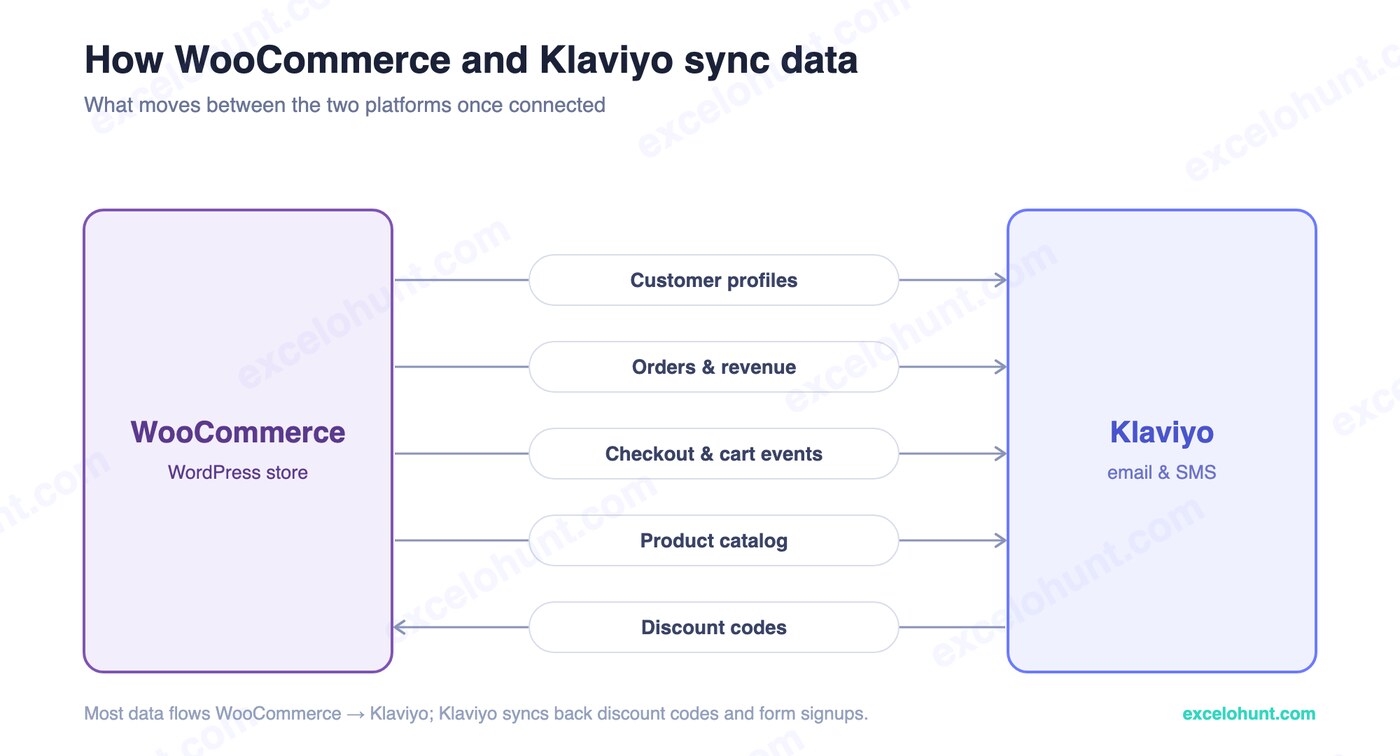
- Customer profiles — names, emails, addresses.
- Orders & revenue — full purchase history for segmentation and LTV.
- Checkout & cart events — the triggers for abandoned cart and browse flows.
- Product catalog — for dynamic product blocks and recommendations.
This historical sync is what lets you immediately build segments like “repeat buyers” and “VIPs.”
Onsite tracking and forms
For browse abandonment and active-on-site tracking to work, the public API key / onsite snippet must be firing on your storefront — the plugin handles this when configured. Then build a signup form in Klaviyo to grow your list; the form embeds on your WooCommerce site via the same snippet.
Essential flows for WooCommerce
The integration powers the same core automations as any store:
- Welcome series — greets new subscribers.
- Abandoned cart — recovers WooCommerce checkouts.
- Browse abandonment — needs onsite tracking active.
- Post-purchase — onboards buyers and cross-sells.
Build these from Klaviyo’s templates and add conditional splits — the full playbook is in our complete flows guide.
Troubleshooting
Common WooCommerce-specific issues and fixes:
- Events not firing: confirm the public API key is set and onsite tracking is enabled; aggressive caching or security plugins can block the snippet.
- Data not syncing: re-check the private API key and that the plugin is active and updated.
- Duplicate profiles: ensure you’re not also running an unofficial connector alongside the official plugin.
If your store predates the integration, allow time for the historical backfill to complete. Klaviyo’s WooCommerce documentation covers edge cases.
Frequently asked questions
How do I connect Klaviyo to WooCommerce?
Install the official Klaviyo for WooCommerce plugin in WordPress, then enter your Klaviyo public and private API keys in the plugin settings to enable the integration. Klaviyo then syncs customers, orders, products, and checkout events.
Does Klaviyo work with WooCommerce?
Yes. Klaviyo has an official WooCommerce/WordPress plugin that syncs customer, order, product, and event data, and enables onsite tracking for browse and cart flows — the same core capabilities it offers Shopify stores.
What data does Klaviyo sync from WooCommerce?
Customer profiles, order and revenue history, checkout and cart events, and the product catalog. This data powers segmentation, abandoned cart and browse flows, and dynamic product recommendations.
Why aren’t my Klaviyo flows firing on WooCommerce?
Usually onsite tracking isn’t active — confirm the public API key is set and the snippet is loading (caching or security plugins can block it). For sync issues, re-check the private API key and that the plugin is active and up to date.
About the author
Ravinderpal Singh is the founder of Excelohunt, a Klaviyo-focused email & SMS agency. We build Klaviyo on WooCommerce and Shopify alike.
Want it set up properly? Our team handles Woo + Klaviyo builds end to end.
More in Klaviyo
- 12 Best Klaviyo Agencies in 2026 (Honest Comparison)
- Klaviyo Agency Pricing: What You Should Pay in 2026
- Optimite Alternatives: Klaviyo Email Agencies Compared (2026)
- How to Set Up Klaviyo: Complete Setup Guide (Step-by-Step)
- How to Use Klaviyo: A Beginner's Guide (2026)